First-time Initialization#
Click on the instance ID again.
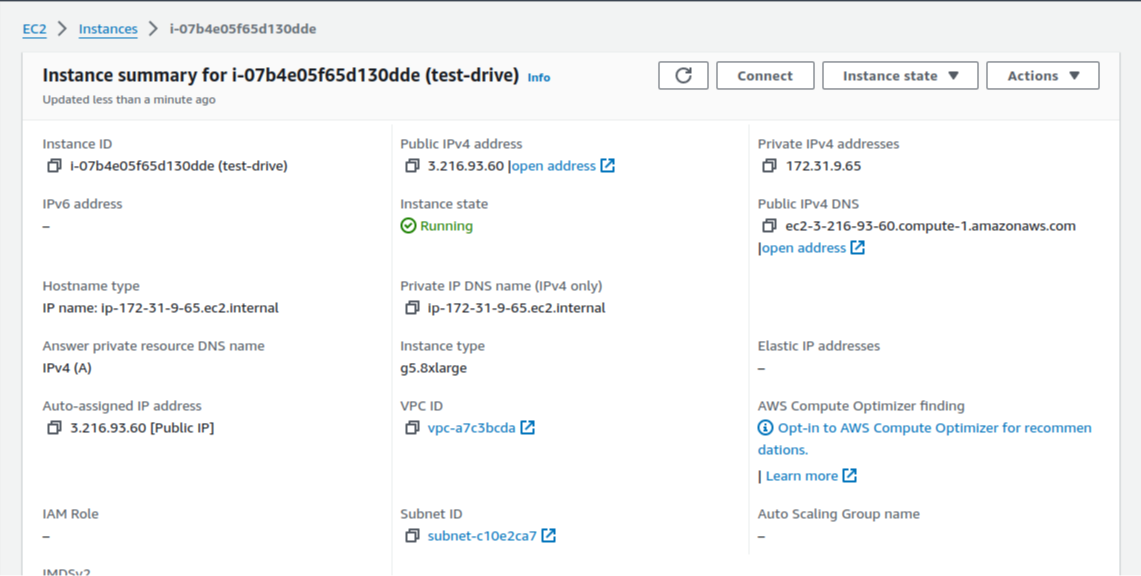
Click on the Public IPv4 address "open address" link. If you have not set up SSL in some previous step your browser will land on a broken page like this:
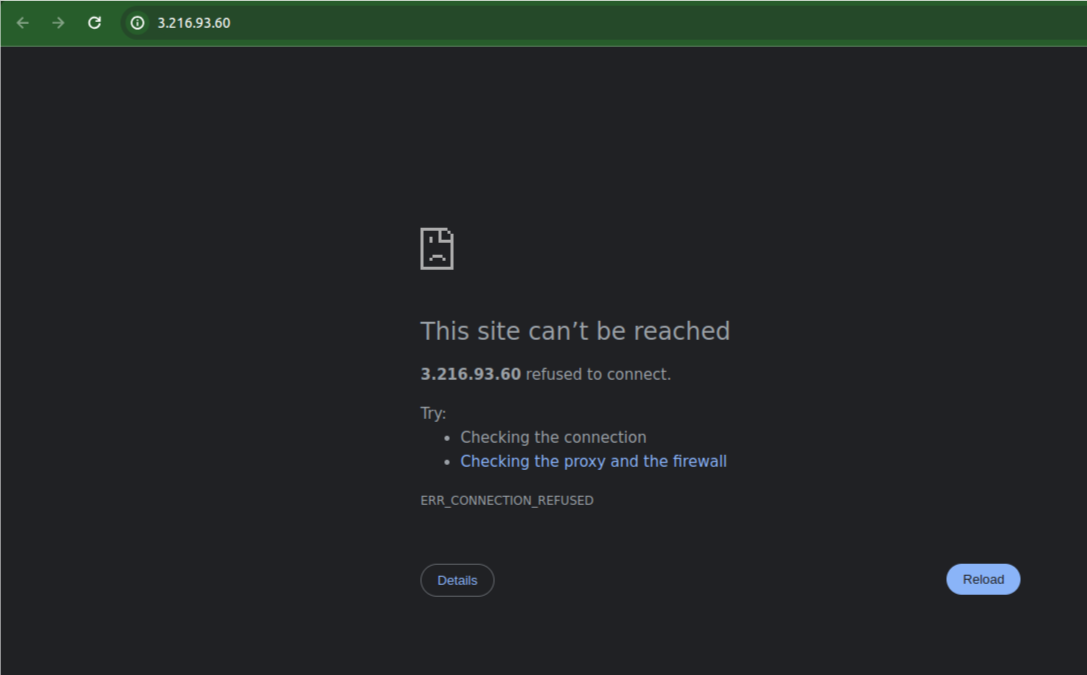
Click on the url bar at the top of the screen and press the arrow keys to show the full url including the protocol:

And change the "https" to "http".
If your network administrator set up SSL, this step isn't necessary.
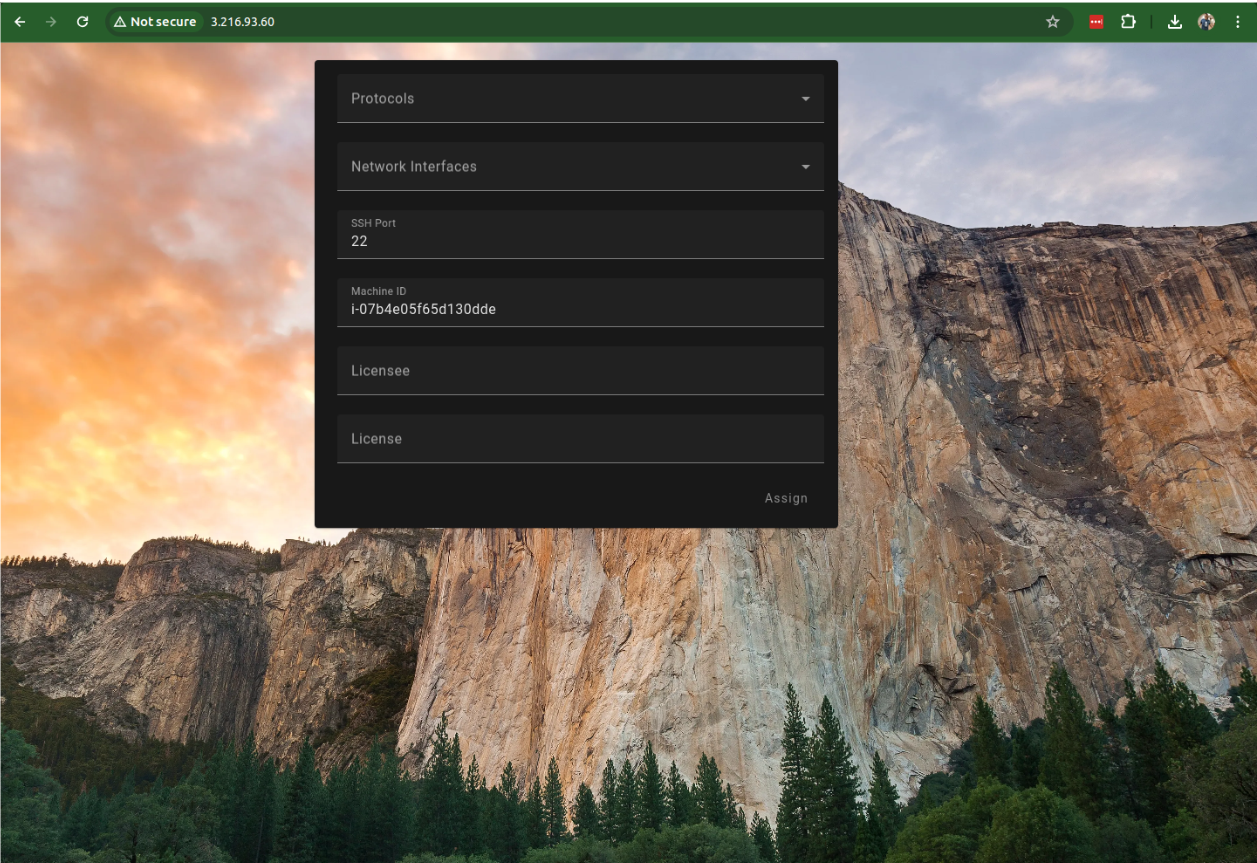
If you've given your instance enough time to warm up (2-3 minutes) then you will land on this page:
Quick Start (7-Day Trial)#
LIT Platform includes a 7-day free trial. Simply click Start Free Trial to begin using the platform immediately. The system will automatically detect the best network configuration for your machine.
If you need to adjust settings, expand the Advanced Settings panel to configure:
- Protocol: HTTP or HTTPS (ask your IT administrator)
- Network Interface: Usually auto-detected correctly (the public IP address)
- SSH Port: Default is 22
Anytime your machine's IP address changes the LIT platform will detect the change and ask you to choose a new IP address to bind to.
Click the Start Free Trial button. LIT will now bind itself to your machine. This step typically takes less than 5 minutes depending on machine speed.
Activating a License#
During or after your trial, you can activate a full license:
- Contact your LIT Sales representative with your Machine ID (visible in Advanced Settings)
- They will provide you with a Licensee name and License Key
- Open the License Status widget from the menu
- Expand Enter License Key and enter your credentials
- Click Activate License
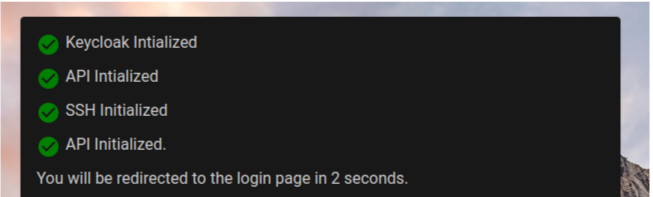
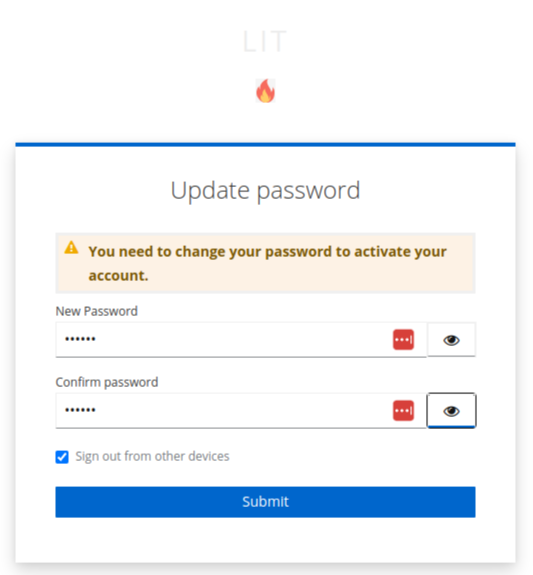
You are directed to the login page. You'll be provided a temporary username/password. You'll be prompted to create a new secure password. Follow your IT administrator’s best practices:
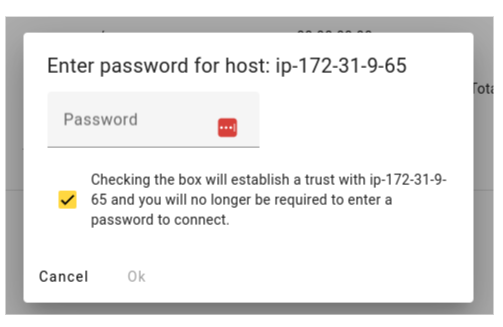
You will now be prompted to enter that password to establish a trust relationship to the machine.
You are taken to this landing page. The platform is now fully installed.